How it works
It speaks remote.
Your air conditioner already listens for infrared light from its remote. Rewise Air sends the same signals, and connects that to your phone.
Your phone
You tap 22° in the Rewise app, or ask Siri or Alexa.
Rewise Air
Gets the command over Wi-Fi, at home or from anywhere, and turns it into your AC’s own infrared signal.
Your AC
Hears its remote and does what you asked. The app shows the new state straight away.
It works the other way too. Rewise Air has an infrared receiver, so when someone uses the original remote, it hears the command and the app updates on its own.
Setup guide
From box to cool air.
What you need
- An iPhone with iOS 17 or later, or an Android phone with Android 8 or later, and the Rewise app (get the app).
- Your home Wi-Fi name and password. Rewise Air uses 2.4 GHz Wi-Fi, which almost every home router provides.
- A USB-C power source near the AC: any phone charger works.
- Your air conditioner’s remote, for one button press.
1. Place it
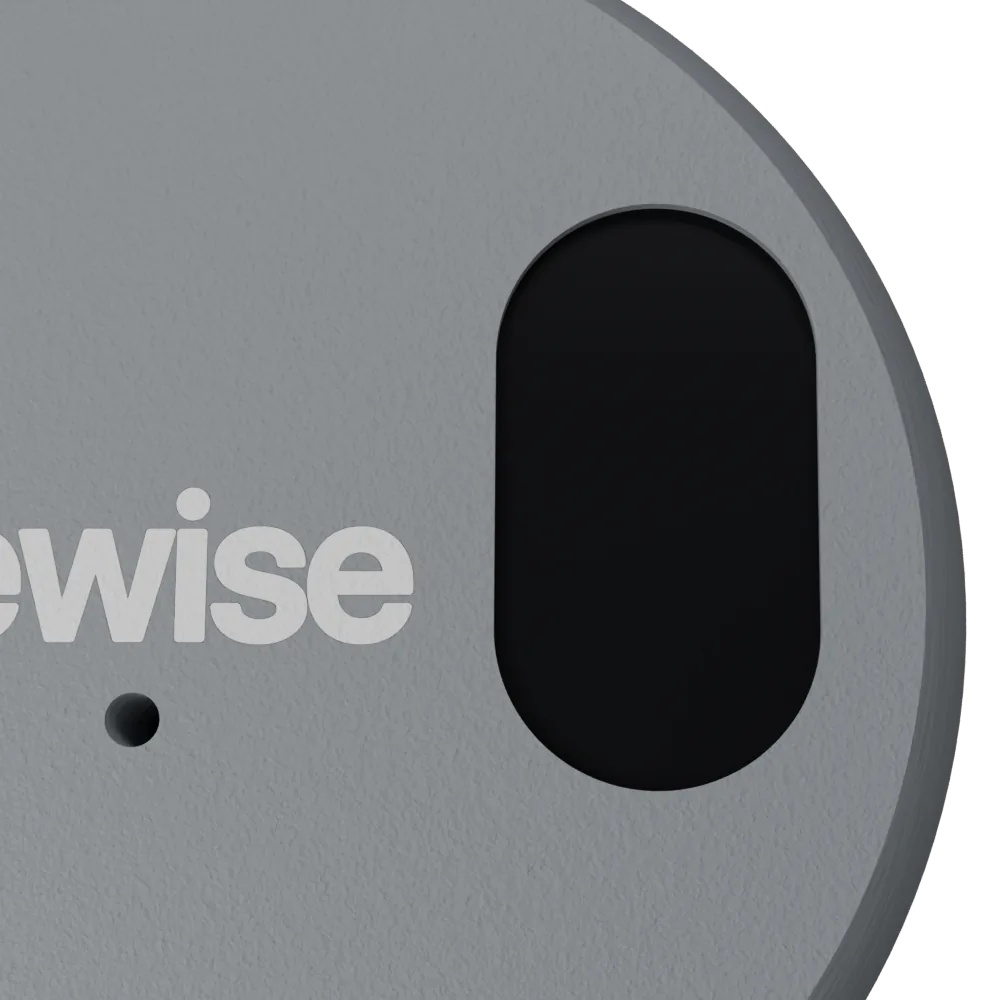
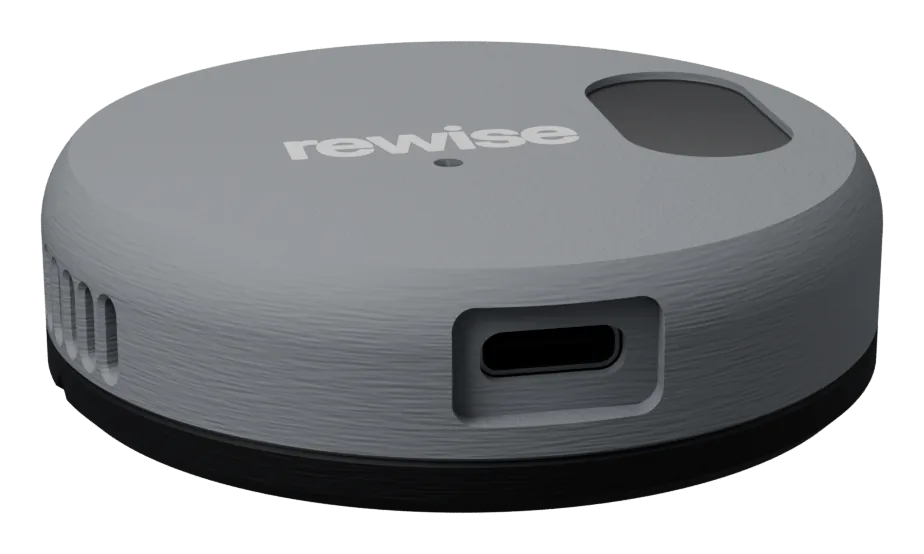
Put Rewise Air on a shelf or cabinet with a clear view of the air conditioner, ideally 1–6 metres away. The infrared window on top should face the AC. Plug it into a USB-C charger.
2. Connect it
Open the Rewise app and tap Add a device. Your phone finds Rewise Air over Bluetooth. Choose your Wi-Fi and enter its password. It goes only to the device, never to us.
3. Press your remote once
Point your AC’s remote at Rewise Air and press any button. Rewise recognises the brand and sends a test command so you can confirm the AC responded. If your AC isn’t recognised, Rewise learns its buttons straight from the remote.
4. Make it yours
- Control from anywhere: sign in to your Rewise account in Settings. Remote access switches on by itself.
- Family: invite people from Settings → Account, and send them the link.
- Alexa: open Alexa in the app’s Settings and follow the steps to link the Rewise skill.
- Siri: ask Siri, or add Rewise actions to your own Shortcuts.
If something isn’t working
- The AC doesn’t respond: move Rewise Air so nothing blocks its view of the AC, and check the infrared window faces it.
- The app can’t find it: keep your phone close, with Bluetooth on, and make sure Rewise Air is powered.
- Wi-Fi won’t connect: check the password and that your router offers 2.4 GHz.
- Start over: remove the device in the app, then add it again.
Still stuck? Visit Support or email support@rewisehome.com.